A tidy desk does not need a box full of cable accessories. In 20 minutes, you can give every cord a sensible route, keep the ones you use within reach, and leave room for your next gadget.
Start With a 20-Minute Route Plan
Before attaching anything, look at the desk from where you sit. Which cables need to move with your laptop, phone, or headphones? Which ones can stay behind the desk? That simple split keeps you from tying down a cord you need to unplug every day.
Use the first two minutes to unplug and remove unused cables. Spend four minutes placing the power strip and choosing a route along the back or underside of the desk. Allow five minutes to mount a tray or position cable holders, five minutes to group and route cords, and four minutes to label and check your work. If mounting takes longer, finish the route first and add labels later.
Keep power cords and device cables easy to trace rather than hiding them in one tight bundle. Check where a chair rolls, where your feet rest, and how far a standing desk travels. A neat route that gets pulled when the desk moves will not last. If you are arranging the whole workspace, our small-budget home office setup guide can help you decide what belongs on the desk at all.
Pick a Tray That Fits Your Desk
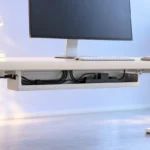
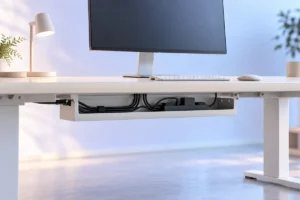
An under-desk tray gives a power strip, adapters, and spare cable length one place to live. An open tray is often easier to inspect and adjust than a closed box. Measure the space under your desk before choosing one, including any support bars, drawers, or desk controls that could get in the way.
A screw-mounted tray may suit a solid desk when you are comfortable making holes. A clamp-on tray is easier to move and may work better for a desk you cannot drill. Adhesive holders can be useful for light cables, but check the surface instructions and weight limits; they are not a safe default for a heavy power strip. Whichever style you use, follow its mounting directions and keep outlets accessible.
Do not pack adapters tightly or cover ventilation openings. Leave enough room to see plugs and remove one without dismantling the whole setup. If a tray would block your knees or the desk has nowhere secure to mount it, skip the tray. A well-placed power strip with a few cable holders is better than a crowded tray that you will have to move.
Use Ties That Are Easy to Undo
Reusable hook-and-loop ties are a good starting point because you can open them when a device changes. Wrap them around a small group of cables with enough slack to let each cord follow its natural path. They should hold cables together, not squeeze them into a hard bend.
Plastic zip ties can hold a permanent run, but removing one takes a cutting tool and care around the cable jacket. For a desk where chargers and peripherals come and go, reusable ties usually make changes simpler. Cable clips serve a different job: they hold a frequently used charging lead near the desk edge so it does not fall behind the furniture.
Group cables by destination, such as “monitor” or “laptop area,” instead of making one thick bundle. Leave a little spare length near plugs for removal and cleaning. Avoid sharp bends, pinched cords, and ties on damaged cables. If a cord looks frayed or its plug feels loose, deal with that problem before organizing it. Cable management should make connections easier to inspect, not hide signs that something needs attention.
Route Cables for Daily Use
Start at each device and guide its cable toward the back of the desk, then down to the tray or power strip. This is easier than pulling every cord upward from the floor and hoping it reaches. Give your keyboard, mouse, laptop, or other movable device the slack it needs in normal use, then secure the rest.
Keep the cable you unplug most often separate from cords that stay connected. A laptop charging lead, for example, is easier to use when its end rests in a desk-edge clip. Check that the lead reaches the port without pulling sideways. For more on everyday charging habits, see our guide to making your laptop battery last longer.
If you have a standing desk, raise and lower it slowly while watching every cord. Leave a gentle loop where cables travel between the moving desk and a fixed wall outlet. Keep cords away from chair wheels and walking paths, and do not run them under rugs. Once the route works in every desk position, fasten the final section. That quick movement check can save you from rebuilding an arrangement that looked fine only while seated.
Label the Ends You Will Need Later
Labels are most useful where several similar plugs meet: behind a monitor, at a hub, or near a power strip. You do not need to label every inch of cable. Put a short, readable name near each end that you are likely to unplug, such as “monitor power,” “webcam,” or “phone charger.”
Small wraparound labels work well, but a piece of tape folded around the cable can also do the job. Write clearly and keep the label away from connector openings and any ventilation slots. If two cables look alike, add the same name at both ends. That makes it easier to remove the right one without tugging on every cord in the tray.
For shared chargers, identify the connector or device rather than assuming every cable supports the same features. Two USB-C cables may look similar while serving different charging or data needs. A label such as “laptop USB-C cable” is more helpful than “black cable.” If you need to sort out those differences, read our plain-English guide to USB-C cables, chargers, and speeds. Keep labels brief enough that you can read them without moving the desk.
Leave Space for the Next Gadget
A setup sticks when adding one device does not require cutting every tie. Leave some open space in the tray and one clear route from the desk surface to your power or data connections. That route might be along a back leg, through a desk opening, or beside an existing cable group.
Do not fill every outlet just because one is available. Check the power strip’s rating and the needs of the devices you connect; avoid joining power strips together. If you are unsure about an electrical load, consult the device instructions or a qualified electrician. Cable ties organize cords, but they do not make an overloaded outlet safe.
Think about which additions are likely: a controller, new keyboard, desk lamp, or second charger. Keep their likely cable path free, even if you do not own them yet. Our guide to useful budget gaming accessories offers examples of peripherals you may want to make room for. When a new gadget arrives, route its cable along the open path, label it, and close a reusable tie. That small habit is easier than another full desk reset.
Quick Choices for Common Desk Problems
You do not need every cable product on the shelf. Match each problem to the smallest useful fix:
- Plugs and adapters on the floor: Consider an open under-desk tray if you have a secure place to mount it.
- Cords falling behind the desk: Put a small cable clip near the point where you use each cord.
- A bundle that keeps changing: Choose reusable hook-and-loop ties over permanent zip ties.
- Similar plugs that are hard to identify: Label both ends before you group them.
- Cables pulled when the desk moves: Add slack and check the full movement before fastening anything.
Finish with a one-minute check from your normal seated position. Can you reach the charger you use daily? Can you identify the plug you would remove first? Are cables clear of your chair and feet? If the answers are yes, stop. A practical setup does not need to make every cable invisible.
Recheck the route whenever you add or remove a device. Open one tie, guide the changed cable, and close it again. Keeping that change small is what makes a 20-minute setup last.
Frequently Asked Questions
Do I need an under-desk cable tray?
No. A tray helps hold a power strip and adapters, but secure cable holders and a clear route may be enough for a simple desk.
Are zip ties or reusable ties better for desk cables?
Reusable ties are easier to open when you change devices. Avoid tightening any tie enough to pinch or sharply bend a cable.
Where should I put cable labels?
Place short labels near the ends you may unplug, especially where similar cables meet. Label both ends if tracing the cable later would be difficult.
How much slack should a standing desk have?
Leave enough for the desk to move through its full range without pulling any plug or dragging a cord. Test the movement slowly before securing the route.
Final Thoughts
Good cable management is easy to use and easy to change. Give cords a safe route, hold loose length with reusable ties, label confusing plugs, and leave room for one more device. Twenty minutes is enough to build a system you can maintain a cable at a time.