An old laptop can feel slow long before it becomes useless. The right changes may make it comfortable for browsing, writing, and video calls again, but not every upgrade is worth the effort. Here are seven that can help, plus a simple way to decide when replacement makes more sense.
1. Replace a Hard Drive With an SSD
If your laptop still uses a spinning hard drive, an SSD is often the most noticeable upgrade. It can shorten startup times and make apps and files open more quickly. It will not turn an old processor into a new one, but it can remove the delays that make everyday tasks frustrating.
Check the laptop’s exact model before choosing a drive. Some take a 2.5-inch SATA SSD, others use an M.2 drive, and some have storage that cannot be replaced. M.2 is a physical shape, not a guarantee that any M.2 drive will work; the supported connection and size matter too.
Back up important files before opening the laptop. You can move your system to the new drive or install the operating system from scratch, but either route takes preparation. If the computer already has an SSD, replacing it with another SSD may add space without making ordinary tasks much faster.
2. Add RAM, If the Laptop Allows It
RAM helps a laptop keep several apps and browser tabs open without constantly moving data to storage. If yours slows down when you switch between a video call, documents, and a few tabs, more RAM may help. It is less useful when one demanding app is slow because the processor cannot keep up.
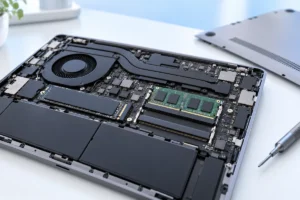
First, check how much RAM is installed and whether any of it can be replaced. Many thin laptops have memory soldered to the board. Others have one or two accessible slots, sometimes alongside soldered memory. Your model’s documentation should tell you the supported type, capacity, and slot layout.
Do not assume that the largest memory kit you can find will work. Match the required generation and form factor, and keep expectations realistic: extra RAM makes multitasking smoother when memory is the problem, but it will not fix a failing drive, overheating, or poor internet service. If opening the case looks risky, ask a repair shop to confirm compatibility and installation options.
3. Replace a Worn Battery
A fresh battery can make an otherwise useful laptop portable again. Signs of wear include a sharp drop in runtime, unexpected shutdowns, or a charge level that falls quickly after unplugging. Check the operating system’s battery-health information where available, and compare it with how the laptop behaves in normal use.
Battery replacement ranges from straightforward to difficult. Some laptops have easily removable packs; others use batteries held inside the case with screws and adhesive. Find the exact part specification for your model, and consider professional help if cables or adhesive make removal uncertain. A replacement battery should not be treated as a fix for every power problem: a faulty charger or charging port can cause similar symptoms.
If the case is swelling or the trackpad is lifting, stop using and charging the laptop until it has been assessed safely. Do not puncture or press on a swollen battery. For a healthy battery, our guide to making your laptop battery last longer covers habits that may help preserve its useful life.
4. Choose an Operating System the Laptop Can Run Safely
Software is an upgrade too. A clean installation can remove years of unwanted programs and background tasks, although it means backing up your files and reinstalling the apps you need. A lighter operating system may also make basic work feel more responsive on limited hardware.
The important word is supported. Standard Windows 10 support ended in October 2025, so simply leaving an old laptop on an unsupported installation is not a good long-term answer for online use. Windows 11 has hardware requirements that many older models do not meet. Check current support and security-update options before deciding what to install.
A supported Linux distribution can be a practical choice for browsing, documents, and email if your essential apps and devices work with it. ChromeOS Flex is another option for compatible models, but it does not run ordinary Windows programs. Try a live USB option when available, and check Wi-Fi, sound, webcam, sleep, and printing before committing. An operating-system change should solve your needs, not create new ones.
5 and 6. Deal With Heat and Weak Wireless Connections
Heat can make a laptop slow down to protect itself. If the fan runs constantly, the case becomes unusually hot, or performance drops after a few minutes, check whether vents are blocked. Use the laptop on a firm surface, clear dust from accessible vents, and keep air flowing around it. Our advice on protecting gadgets from summer heat is useful when warm rooms add to the problem.
An internal cleaning or thermal-paste replacement may help an older machine, but it involves more risk than wiping an external vent. Do not open a laptop unless you know how its battery and cooling parts are secured. A damaged or noisy fan may need repair, not just cleaning.
Separately, a USB Wi-Fi adapter can help if the laptop’s wireless hardware is faulty or struggles with a network you need to use. Check driver support for your operating system and whether the adapter will block a neighboring port. It cannot fix a poor internet connection, and faster Wi-Fi specifications alone will not make basic browsing feel dramatically different.
7. Improve the Parts You Actually Touch
Not every useful upgrade goes inside the case. If the laptop works well at a desk but its keyboard, trackpad, or screen makes it unpleasant to use, an external keyboard, mouse, or monitor may be a better answer than a difficult internal repair. A stand can also raise the screen to a more comfortable height when paired with a separate keyboard and mouse.
Think about where you use the laptop before adding accessories. A monitor helps at a desk but does nothing for a dim screen when you travel. An external webcam may improve calls if the built-in camera is poor, while a headset may help more if callers mainly complain about sound. Our small-budget home office guide can help you prioritize a desk setup.
Check the laptop’s available ports and display support before choosing anything. Also remember that accessories do not cure an unreliable laptop. If the machine shuts down unexpectedly or cannot receive security updates, a nicer keyboard will not address the main problem.
How to Decide What Is Worth Doing
Start with the problem you can describe, not a list of parts you could replace. Slow startups and file opening point toward storage. Slowdowns with many tabs point toward RAM. Short unplugged runtime points toward battery health. Poor performance after the laptop warms up points toward cooling. Make one change at a time when possible, so you can tell whether it helped.
- Good upgrade candidate: The laptop is reliable, its essential apps are supported, and one clear fault is holding it back.
- Get a repair opinion: You suspect battery swelling, fan failure, charging trouble, or a problem that requires difficult disassembly.
- Consider replacement: Several major parts need work, the laptop cannot run a suitable supported operating system, or its processor cannot handle tasks you must do.
Include the cost of any needed adapters in that decision. USB-C ports, for example, do not all support the same charging and display features; our guide to USB-C cables, chargers, and speeds explains what to check. Back up your files before repairs or replacement, and avoid spending on upgrades that leave your main frustration untouched.
Frequently Asked Questions
Is an SSD worth adding to a very old laptop?
Usually, if it still has a hard drive and you only need basic tasks. Check drive compatibility and operating-system support before spending money.
Will more RAM make my laptop faster?
It can help when the laptop slows down with several apps or tabs open. It will not solve overheating, a slow processor, or a failing drive.
Can I keep using Windows 10 on an old laptop?
Standard support ended in October 2025, so check current security-update options before using it online. A supported operating system or a replacement laptop may be the safer choice.
When should I replace the laptop instead of upgrading it?
Consider replacing it when several repairs are needed, essential software is unsupported, or the processor cannot manage your regular tasks. Back up your files before making the change.
Final Thoughts
An old laptop deserves a clear diagnosis, not an automatic shopping list. An SSD, RAM, battery, or software change can extend its useful life when it addresses a real problem. If the machine is unreliable or cannot safely support the work you need to do, replacing it is the more honest call.