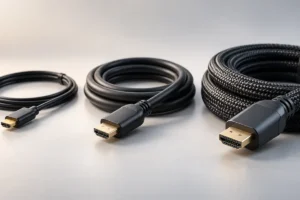
USB-C was supposed to make life simple: one small, reversible plug for phones, laptops, tablets and headphones. The plug is the same everywhere, but the cables behind it can be very different. This guide explains why, and how to pick a cable that actually does what you need.
USB-C Is a Shape, Not a Speed
The most important thing to know is that USB-C only describes the connector. It tells you the shape of the plug. It does not tell you how fast the cable charges, how quickly it moves files, or whether it can send a picture to a monitor.
Inside the cable, the number of wires and the quality of those wires decide what it can do. A cheap cable that came free with a pair of earbuds may only have the basic wires needed for charging and slow data. A more advanced cable has extra wire pairs for high-speed data and video, plus better shielding.
From the outside, both cables can look almost identical. That is why so many people end up confused when a cable that works fine with their phone does nothing when plugged into a monitor, or charges their laptop very slowly.
Think of USB-C like a road entrance. The entrance looks the same, but behind it could be a narrow lane or a wide highway.
Charging: Why Wattage Ratings Matter
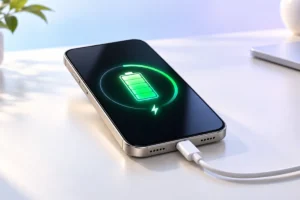
Most modern fast charging over USB-C uses a standard called USB Power Delivery, often shortened to USB PD. The charger and the device “talk” to each other and agree on how much power to send. The cable has to be able to carry that power safely.
USB-C cables generally fall into three charging groups:
- 60W cables: rated for 3 amps. Plenty for phones, tablets and many small laptops.
- 100W cables: rated for 5 amps. These contain a small chip, called an e-marker, that tells the charger the cable can handle more current.
- 240W cables: the newest level, supporting higher voltages for powerful laptops and some gaming machines.
If you plug a 100W laptop charger into a 60W cable, nothing dangerous should happen with a well-made cable. The charger simply limits itself to around 60W, so your laptop charges more slowly.
For phones, a 60W cable is almost always enough. For larger laptops, a 100W or 240W cable is the safer choice.
Data Speeds: From Slow to Very Fast
Data speed is where USB-C cables differ the most. Here are the common speed levels you will see, from slowest to fastest:
- USB 2.0 (480 Mbps): found in many charging cables. Fine for syncing a phone, slow for big files.
- USB 5Gbps and 10Gbps: previously sold under confusing names like USB 3.1 and USB 3.2 Gen 2. Good for external drives.
- USB 20Gbps: less common, mostly for fast external SSDs.
- USB4 and Thunderbolt (40Gbps): for docks, fast storage and high-resolution monitors.
- USB 80Gbps and Thunderbolt 5: the newest and fastest level, mainly for high-end laptops and docks.
Remember that the slowest part of the chain sets the speed. A 40Gbps cable will not make an old 5Gbps drive any faster.
Length matters too. Very fast passive cables are usually short, often under one meter. Longer high-speed cables frequently need built-in electronics, which makes them “active” cables and usually more expensive.
Video Output: Why Some Cables Show a Blank Screen
Many laptops, tablets and some phones can send video through their USB-C port to a monitor or TV. This uses a feature called DisplayPort Alternate Mode, or works through USB4 and Thunderbolt.
Video needs the extra high-speed wires inside the cable. A basic USB 2.0 charging cable simply does not have them. That is the most common reason a monitor shows “no signal” even though the cable is plugged in on both ends.
Two other things must also be true for video to work:
- Your device’s USB-C port must support video output. Not every port does, even on the same laptop.
- Your monitor must accept USB-C video input, or you need a proper adapter, such as USB-C to HDMI.
Look for a small display or Thunderbolt symbol next to the port, or check your device’s manual. For the cable, choose one listed as supporting 10Gbps or higher, or one that clearly mentions video or DisplayPort support.
Chargers Matter as Much as Cables
A great cable cannot fix a weak charger. If your charger only outputs 20W, a 240W cable will still deliver 20W at most.
The good news is that a higher-wattage USB PD charger is generally safe for smaller devices. Your phone only takes the power it asks for, so a 65W laptop charger will not overload it.
Some phones use an extra feature called PPS (Programmable Power Supply) to reach their top charging speed. Several Samsung phones, for example, need a PPS-capable charger for their fastest “Super Fast Charging” modes. If your phone’s maker mentions PPS, check that your charger supports it.
Multi-port chargers are handy, but they usually share their total power across ports. A 100W charger with three ports might only give 45W to one port when everything is plugged in. The charger’s label or manual normally explains how the power is split.
How to Read Labels and Logos
The group that manages the USB standard, the USB Implementers Forum, has introduced simpler logos for certified products. Newer certified cables can show the data speed and charging power directly, such as “USB 40Gbps” with “240W.”
Thunderbolt cables carry a lightning bolt symbol, often with a number like 4 or 5. A Thunderbolt 4 or 5 cable is one of the safest “do everything” choices, because it is built to handle fast data, video and at least 100W charging.
Be careful with vague marketing words such as “fast,” “high speed” or “super charging” with no numbers. A trustworthy listing should clearly state:
- The maximum charging power in watts
- The maximum data speed in Gbps or Mbps
- Whether video output is supported
- The cable length
If any of these are missing, assume the cable is a basic charging cable until proven otherwise.
Practical Tips: Picking the Right Cable
Based on what we researched, here is a simple way to match a cable to your needs:
- Charging a phone or earbuds: a basic 60W USB-C cable is fine.
- Charging a laptop: choose a 100W cable, or 240W for very powerful laptops.
- Connecting an external SSD: pick a cable rated 10Gbps or faster, ideally the one that came with the drive.
- Connecting a monitor or dock: use a USB4, Thunderbolt 4 or Thunderbolt 5 cable, or one that clearly supports video.
- One cable for everything: a short certified Thunderbolt 4 or USB4 40Gbps cable with 100W or 240W support covers most needs.
A few more habits help avoid bad cables:
- Buy from well-known brands or your device maker, and check for USB-IF certification where possible.
- Avoid unbranded cables with no clear specifications. Some poorly made cables, especially older USB-A to USB-C cables, have been found to break the USB rules and can stress chargers or devices.
- Label your cables with a small tag so you know which one is your fast data or video cable.
- Replace any cable that gets hot, has frayed ends or a loose plug.
Frequently Asked Questions
Can a USB-C cable damage my phone?
A properly made cable should not. The risk comes mainly from very cheap, uncertified cables that ignore the USB rules. Sticking with reputable brands greatly reduces that risk.
Is a Thunderbolt cable the same as a USB-C cable?
Thunderbolt 3, 4 and 5 cables use the USB-C plug, but they meet stricter requirements. A Thunderbolt cable works as a USB-C cable, but a regular USB-C cable is not necessarily a Thunderbolt cable.
Why does my laptop charge slowly with some cables?
The cable may only be rated for 60W, or the charger may be lower in wattage than your laptop needs. Check both the cable rating and the charger’s output.
Do I need an expensive cable for my phone?
Usually not. Most phones charge well with a basic, well-made 60W cable. Pricier cables mainly add faster data and video support, which most phone users do not need every day.
Conclusion
USB-C cables look the same, but they are not the same. Before you pick one, ask three simple questions: how many watts does it carry, how fast does it move data, and does it support video?
Match those answers to what you actually plan to do, choose a reputable certified cable, and you will avoid most of the frustration that USB-C can cause.