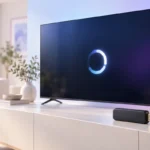
Few things are more annoying than a smart TV that takes forever to open an app, freezes on the home screen, or buffers every few minutes. The good news is that most slow smart TVs can be fixed at home in a few minutes, without any special tools. This guide walks you through the simple fixes first, and explains when a cheap external streaming stick is the smarter move.
Why Smart TVs Slow Down Over Time
A smart TV is basically a small computer built into a screen. The problem is that TV makers often use modest processors and limited memory to keep prices down. That hardware may feel quick on day one, but it does not get any faster as the years go by.
Meanwhile, streaming apps keep growing. Each update adds new features, bigger menus, autoplay previews, and more background activity. Over time, the apps simply ask more of the TV than it was designed to handle.
A few other common causes include:
- Built-up app cache and temporary files filling the small internal storage.
- Many apps left running in the background.
- Out-of-date system software or apps.
- A weak or crowded Wi-Fi connection that looks like a “slow TV” but is really a slow network.
Knowing the cause matters, because the right fix depends on it. Start with the easy steps below and work your way down the list.
Start With a Proper Restart
It sounds too simple, but a full restart fixes a surprising number of sluggish TVs. Many smart TVs never truly turn off. When you press the power button on the remote, they often go into a standby mode so they can start up faster later. That means apps and memory leaks can pile up for weeks.
To do a real restart, try a “power cycle”:
- Turn the TV off with the remote.
- Unplug the power cable from the wall.
- Wait about 60 seconds.
- Plug it back in and turn the TV on.
Some TVs also have a restart option in the settings menu, often under a section called System, Support, or Device Care. That works too, but unplugging is the most thorough option.
If your TV has a “quick start” or “instant on” feature, consider turning it off. Startup will take a few seconds longer, but the TV will get a fresh start every time you switch it on, which can keep it feeling snappier day to day.
Clear App Cache and Free Up Storage
Apps save temporary data, called cache, to load things faster. Over time this cache can grow large, get corrupted, or fill up the TV’s limited storage. When storage runs low, the whole system can slow down.
On many TVs, especially those running Google TV or Android TV, you can clear cache app by app. The steps are very similar to freeing up storage on an Android phone: go to Settings, open Apps, pick the slow app, and choose “Clear cache.” Other TV systems may only offer a “clear data” option or a full app reinstall.
A few extra steps help too:
- Uninstall apps you never use, including preinstalled ones if your TV allows it.
- Use “Clear cache” before “Clear data,” since clearing data will sign you out of the app.
- If one app keeps misbehaving, uninstall and reinstall it for a clean copy.
Be gentle with deep cleaning. A factory reset can help as a last resort, but it wipes all your apps, logins, and picture settings.
Keep the TV Software and Apps Updated
TV makers release system updates to fix bugs, patch security issues, and sometimes improve performance. App developers do the same. Running old software can cause crashes, slow menus, or apps that refuse to load at all.
Look in your TV’s settings for a section named Software Update, System Update, or About. Check for updates manually, and turn on automatic updates if the option is there. For apps, most TV app stores have an “update all” or “auto-update apps” setting.
A quick word of honesty: updates do not always make an older TV faster. Sometimes a newer app version is heavier than the old one and runs a little slower on aging hardware. Even so, staying updated is usually the right choice for security and app compatibility.
It is also worth knowing that many TV models only get updates for a limited number of years. If your TV no longer receives updates and some apps have stopped supporting it, that is a strong sign you may need an external streaming device.
Check Your Network Connection
Sometimes the TV is fine and the internet is the real problem. If menus feel quick but videos buffer, drop to blurry quality, or take ages to start, your connection is the likely culprit.
Try these checks:
- Run the network test in your TV settings, or a speed test app if one is available.
- Restart your router and modem by unplugging them for about 30 seconds.
- Move the router closer to the TV, or remove obstacles like cabinets and thick walls.
- Switch to the 5 GHz Wi-Fi band if your TV and router support it, since it is often less crowded.
- Use an Ethernet cable if your TV has a network port. A wired connection is usually the most stable option.
If your router is very old, it may struggle with several devices streaming at once. Our guide on whether you need to upgrade to Wi-Fi 6 or Wi-Fi 7 explains when a newer router actually makes a difference and when it does not.
Turn Off Features You Do Not Need
Modern smart TVs often run extra services in the background. Each one uses a bit of processing power and memory, which can leave less for the apps you actually want to use.
Common features worth reviewing include:
- Viewing data or content recognition features, often listed under privacy settings.
- Autoplay video previews on the home screen.
- Voice assistants or microphones you never use.
- Device discovery and screen sharing features you do not need.
Turning these off may give a small speed boost, and many people also like the privacy benefits. Results vary by brand, so do not expect a dramatic change from this step alone.
If your TV is part of a bigger connected home setup, think about which links you really use. Our smart home starter guide can help you decide which connected devices are worth keeping and which ones are just adding clutter to your network.
When an External Streaming Stick Is the Answer
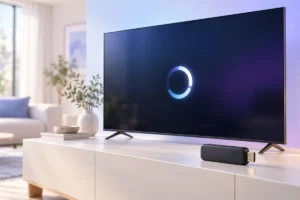
If you have tried everything above and your TV is still slow, the hardware is probably the limit. In that case, a streaming stick or small streaming box is often the most practical fix. It plugs into an HDMI port and takes over all the app work, while your TV simply acts as the screen.
A streaming device makes sense when:
- Your TV no longer gets software updates.
- Popular apps have dropped support for your TV model.
- Menus lag even after a restart and cache clearing.
- The picture quality is still great and you do not want to replace the whole TV.
Basic streaming sticks are among the more affordable gadgets, often roughly $25 to $60 as of late 2026, depending on the model and region. Higher-end boxes cost more. Check that the device supports the apps, resolution, and HDR formats you care about before choosing one.
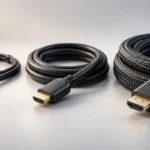
Many sticks plug straight into the TV, but some boxes need a cable. If you are wondering about that, our article on cheap vs expensive HDMI cables explains why you rarely need to overspend.
Quick Comparison: Fix Your TV or Add a Streaming Stick?
Not sure which path fits you? Here is a simple way to decide, based on what we researched across common TV brands and streaming devices.
- Try built-in fixes first if: your TV is only a few years old, still gets updates, and the slowness started recently.
- Look at your network if: menus are quick but videos buffer or drop in quality.
- Consider a streaming stick if: the TV is older, updates have stopped, or apps are missing or crashing.
- Think about a new TV only if: the screen itself is failing, or you want features like a much bigger size or better picture.
A simple routine also helps keep things smooth: power cycle the TV once in a while, clear cache on apps that act up, keep auto-updates on, and uninstall apps you no longer use.
Frequently Asked Questions
Why is my smart TV so slow even with fast internet?
The TV’s built-in processor and memory may be struggling with newer, heavier apps, or storage may be nearly full. Try a full power cycle and clear app cache before blaming your internet.
Will a factory reset make my smart TV faster?
A factory reset can help if leftover data or settings are causing problems, but it will not upgrade the hardware. It also erases your apps and logins, so try simpler fixes first.
How often should I restart my smart TV?
Unplugging it for about a minute every week or two is a reasonable habit for most people. Restart it any time apps start to feel sluggish or freeze.
Is a streaming stick better than built-in smart TV apps?
On older or budget TVs, a recent streaming stick is often faster and gets updates for longer. On a newer TV that still runs smoothly, you may not notice much difference.
Final Thoughts
A slow smart TV does not always mean you need a new one. Start with a proper restart, clear app cache, keep software updated, and check your network. If the TV still drags after all that, an affordable streaming stick can give a perfectly good screen a fresh, faster brain.