Start With the Right Cloth and a Small Amount of Liquid
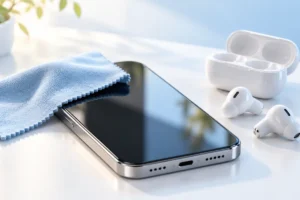
A clean microfiber cloth is a good starting point for most screens and smooth surfaces. It lifts fingerprints without the rough texture of a paper towel. Keep one cloth for screens and another for dirtier parts, such as a phone case or laptop keyboard, so you do not rub grit across a display.
For everyday marks, try a dry cloth first. If that is not enough, lightly dampen part of the cloth with water. It should feel barely damp, not wet enough to drip when squeezed. Wipe gently, then use a dry area of the cloth to remove any remaining moisture.
Check the device maker’s cleaning advice before using a disinfectant or alcohol wipe. Some makers permit certain wipes on exterior surfaces; others warn against particular liquids or coatings. Never spray cleaner onto a gadget, even if the label says it is safe for electronics. Apply a permitted liquid to the cloth instead, and keep it clear of seams, speakers, microphones, and charging ports.
Clean Your Phone Without Soaking Its Openings
Unplug your phone and turn it off before cleaning. Remove the case if you can, then wipe the screen and back with a clean microfiber cloth. Use a barely damp cloth for stubborn fingerprints, but avoid pushing moisture toward the speaker grilles, buttons, or charging port.
Clean the case separately, following the case maker’s advice. A washable plastic or silicone case may tolerate mild soap and water, while leather and other materials may need different care. Let the case dry completely before putting the phone back in it. Dirt trapped inside a case can rub against the phone over time.
A water-resistance rating is not permission to wash a phone under a tap. Resistance can vary with age, wear, and damage. Keep cleaning simple, and let the phone dry fully before plugging it in if moisture gets near the port. For another everyday care habit, see our guide to keeping your phone battery healthy.
Wipe Laptop Screens, Keyboards, and Cases Gently
Shut down the laptop, unplug its charger, and disconnect accessories. Dust on a screen can scratch if you press it into the surface, so wipe gently with a clean microfiber cloth. For marks that remain, use a cloth lightly dampened with water or a screen cleaner approved by the laptop maker. Do not spray the display.
For the keyboard, start with a soft brush or a dry cloth to lift loose crumbs. If the maker permits it, you can wipe key tops with a slightly damp cloth. Do not let liquid pool around the keys, and do not try to flush dirt out with water. Wipe the outer case with a separate cloth so keyboard grime does not reach the screen.
Leave the laptop open until cleaned areas are fully dry, especially before closing the screen against the keyboard. Avoid pressing hard on the display or scraping at a spot with a fingernail. Cleaning helps remove dust and grime, while habits such as managing heat also matter; our guide to making a laptop battery last longer covers those separately.
Remove Earbud Buildup Without Damaging the Mesh
Earbuds need extra care because their speaker mesh, microphones, and charging contacts are small and exposed. Disconnect them from power and remove detachable silicone tips, if they have them. Follow the maker’s instructions for washing the tips; where washing is allowed, let them dry completely before reattaching them.
Use a dry, soft brush to lift loose buildup from the outside of the earbuds. Hold each earbud with the mesh facing downward so debris can fall away. Do not push a brush, pin, or cotton swab into the mesh. Pushing buildup inward can block sound or damage a delicate part.
Wipe the earbud body and charging case with a soft, dry cloth. Use only cleaning liquids that the maker approves, and keep them off speaker openings and charging contacts unless the instructions specifically say otherwise. Earbuds differ in fit and design, but the same gentle approach applies to most models. If you are deciding which style suits you, our earbuds versus headphones guide
Treat Charging Ports as a Stop-and-Check Job
Pocket lint can collect in a phone’s charging port, while dust can settle in laptop and earbud-case ports. First, unplug the device and turn it off. Look into the port in good light without inserting anything. If loose debris is visible at the entrance, check the manufacturer’s guidance before trying to remove it.
Never pour liquid into a port or spray cleaner at it. Avoid metal pins, needles, and forceful scraping: contacts inside the opening can be damaged. Cotton swabs may also leave fibers behind. Compressed air is not a universal fix, since advice differs by device and it may drive debris deeper. If a plug no longer fits properly or charging is unreliable, professional help is safer than digging around blindly.
A dirty port is only one possible reason for charging trouble. A worn cable or charger can cause similar symptoms. Before assuming the port is blocked, try a compatible cable you know works. Our guide to USB-C cables, chargers, and speeds
Know What Never to Spray or Scrub
Do not spray any liquid directly onto a phone, laptop, earbud, case, or charger. A fine mist can reach openings and seams that a cloth would avoid. Skip household glass cleaner, bleach, ammonia-based cleaner, abrasive powder, and strong solvents unless the device maker explicitly approves a specific product. A cleaner that works on a kitchen surface may harm a screen coating or plastic part.
Avoid paper towels and rough sponges on screens. They can trap grit or leave scratches. Do not use a sharp tool to pick dirt from speaker mesh, charging contacts, or tight seams. More pressure does not mean a better clean; if a mark will not lift with gentle wiping, stop and check the maker’s advice.
Take special care with a cracked screen, damaged case, or device that has already been wet. Liquid can enter more easily through damage. If you suspect moisture has entered a gadget, stop using and charging it, and follow the manufacturer’s support instructions rather than trying to clean the problem away.
A Simple Cleaning Checklist for Each Device
You do not need a complicated schedule. Clean visible smudges when they bother you, remove loose dust before it builds up, and give shared or frequently handled devices attention as needed. The key is choosing the least aggressive method that works.
- Phone: Turn it off, remove the case, wipe the screen and body with microfiber, and clean the case separately.
- Laptop: Shut it down and unplug it. Wipe the screen gently, brush loose keyboard debris away, and let any damp-wiped surfaces dry.
- Earbuds: Remove and clean washable tips as directed. Brush exterior buildup gently, keeping tools and liquid out of the mesh.
- Charging ports: Inspect in good light. Do not spray, scrape, or force a tool inside; seek help if charging remains unreliable.
Before putting anything back together, check that the cloth has left no moisture around openings or contacts. Reattach earbud tips and phone cases only when fully dry. If a device maker gives different instructions for your model, follow those instructions over a general checklist.
Frequently Asked Questions
Can I use alcohol wipes on my phone screen?
Check your phone maker’s cleaning instructions first, because approved wipes and screen coatings vary. If a wipe is permitted, wipe gently and keep moisture away from openings.
Is it safe to wash wireless earbuds with water?
Do not wash the earbuds themselves unless their maker specifically instructs you to. Some removable silicone tips can be washed separately, but they must dry completely before reattachment.
Should I use compressed air in a charging port?
Not without checking the device maker’s advice. Air can push debris deeper, and a damaged or unreliable port may need professional attention.
What should I do if cleaner gets inside a gadget?
Turn it off, unplug it, and do not charge it while moisture may be inside. Follow the manufacturer’s support guidance for your device.
Final Thoughts
Safe gadget cleaning is mostly about restraint: use a soft cloth, apply only a little approved liquid to the cloth, and keep moisture out of openings. When dirt is stuck in a mesh or port, do not force it. Check the device’s instructions or get help rather than risk damage.
Cleaning your gadgets does not require a shelf of special products. The safest routine is to turn devices off, use a soft cloth, and keep liquid away from openings. This guide covers what to use on phones, laptops, and earbuds—and when to leave a stubborn bit of dirt alone.
Start With the Right Cloth and a Small Amount of Liquid
A clean microfiber cloth is a good starting point for most screens and smooth surfaces. It lifts fingerprints without the rough texture of a paper towel. Keep one cloth for screens and another for dirtier parts, such as a phone case or laptop keyboard, so you do not rub grit across a display.
For everyday marks, try a dry cloth first. If that is not enough, lightly dampen part of the cloth with water. It should feel barely damp, not wet enough to drip when squeezed. Wipe gently, then use a dry area of the cloth to remove any remaining moisture.
Check the device maker’s cleaning advice before using a disinfectant or alcohol wipe. Some makers permit certain wipes on exterior surfaces; others warn against particular liquids or coatings. Never spray cleaner onto a gadget, even if the label says it is safe for electronics. Apply a permitted liquid to the cloth instead, and keep it clear of seams, speakers, microphones, and charging ports.
Clean Your Phone Without Soaking Its Openings
Unplug your phone and turn it off before cleaning. Remove the case if you can, then wipe the screen and back with a clean microfiber cloth. Use a barely damp cloth for stubborn fingerprints, but avoid pushing moisture toward the speaker grilles, buttons, or charging port.
Clean the case separately, following the case maker’s advice. A washable plastic or silicone case may tolerate mild soap and water, while leather and other materials may need different care. Let the case dry completely before putting the phone back in it. Dirt trapped inside a case can rub against the phone over time.
A water-resistance rating is not permission to wash a phone under a tap. Resistance can vary with age, wear, and damage. Keep cleaning simple, and let the phone dry fully before plugging it in if moisture gets near the port. For another everyday care habit, see our guide to keeping your phone battery healthy.
Wipe Laptop Screens, Keyboards, and Cases Gently
Shut down the laptop, unplug its charger, and disconnect accessories. Dust on a screen can scratch if you press it into the surface, so wipe gently with a clean microfiber cloth. For marks that remain, use a cloth lightly dampened with water or a screen cleaner approved by the laptop maker. Do not spray the display.
For the keyboard, start with a soft brush or a dry cloth to lift loose crumbs. If the maker permits it, you can wipe key tops with a slightly damp cloth. Do not let liquid pool around the keys, and do not try to flush dirt out with water. Wipe the outer case with a separate cloth so keyboard grime does not reach the screen.
Leave the laptop open until cleaned areas are fully dry, especially before closing the screen against the keyboard. Avoid pressing hard on the display or scraping at a spot with a fingernail. Cleaning helps remove dust and grime, while habits such as managing heat also matter; our guide to making a laptop battery last longer covers those separately.
Remove Earbud Buildup Without Damaging the Mesh
Earbuds need extra care because their speaker mesh, microphones, and charging contacts are small and exposed. Disconnect them from power and remove detachable silicone tips, if they have them. Follow the maker’s instructions for washing the tips; where washing is allowed, let them dry completely before reattaching them.
Use a dry, soft brush to lift loose buildup from the outside of the earbuds. Hold each earbud with the mesh facing downward so debris can fall away. Do not push a brush, pin, or cotton swab into the mesh. Pushing buildup inward can block sound or damage a delicate part.
Wipe the earbud body and charging case with a soft, dry cloth. Use only cleaning liquids that the maker approves, and keep them off speaker openings and charging contacts unless the instructions specifically say otherwise. Earbuds differ in fit and design, but the same gentle approach applies to most models. If you are deciding which style suits you, our earbuds versus headphones guide
Treat Charging Ports as a Stop-and-Check Job
Pocket lint can collect in a phone’s charging port, while dust can settle in laptop and earbud-case ports. First, unplug the device and turn it off. Look into the port in good light without inserting anything. If loose debris is visible at the entrance, check the manufacturer’s guidance before trying to remove it.
Never pour liquid into a port or spray cleaner at it. Avoid metal pins, needles, and forceful scraping: contacts inside the opening can be damaged. Cotton swabs may also leave fibers behind. Compressed air is not a universal fix, since advice differs by device and it may drive debris deeper. If a plug no longer fits properly or charging is unreliable, professional help is safer than digging around blindly.
A dirty port is only one possible reason for charging trouble. A worn cable or charger can cause similar symptoms. Before assuming the port is blocked, try a compatible cable you know works. Our guide to USB-C cables, chargers, and speeds
Know What Never to Spray or Scrub
Do not spray any liquid directly onto a phone, laptop, earbud, case, or charger. A fine mist can reach openings and seams that a cloth would avoid. Skip household glass cleaner, bleach, ammonia-based cleaner, abrasive powder, and strong solvents unless the device maker explicitly approves a specific product. A cleaner that works on a kitchen surface may harm a screen coating or plastic part.
Avoid paper towels and rough sponges on screens. They can trap grit or leave scratches. Do not use a sharp tool to pick dirt from speaker mesh, charging contacts, or tight seams. More pressure does not mean a better clean; if a mark will not lift with gentle wiping, stop and check the maker’s advice.
Take special care with a cracked screen, damaged case, or device that has already been wet. Liquid can enter more easily through damage. If you suspect moisture has entered a gadget, stop using and charging it, and follow the manufacturer’s support instructions rather than trying to clean the problem away.
A Simple Cleaning Checklist for Each Device
You do not need a complicated schedule. Clean visible smudges when they bother you, remove loose dust before it builds up, and give shared or frequently handled devices attention as needed. The key is choosing the least aggressive method that works.
- Phone: Turn it off, remove the case, wipe the screen and body with microfiber, and clean the case separately.
- Laptop: Shut it down and unplug it. Wipe the screen gently, brush loose keyboard debris away, and let any damp-wiped surfaces dry.
- Earbuds: Remove and clean washable tips as directed. Brush exterior buildup gently, keeping tools and liquid out of the mesh.
- Charging ports: Inspect in good light. Do not spray, scrape, or force a tool inside; seek help if charging remains unreliable.
Before putting anything back together, check that the cloth has left no moisture around openings or contacts. Reattach earbud tips and phone cases only when fully dry. If a device maker gives different instructions for your model, follow those instructions over a general checklist.
Frequently Asked Questions
Final Thoughts
Safe gadget cleaning is mostly about restraint: use a soft cloth, apply only a little approved liquid to the cloth, and keep moisture out of openings. When dirt is stuck in a mesh or port, do not force it. Check the device’s instructions or get help rather than risk damage.