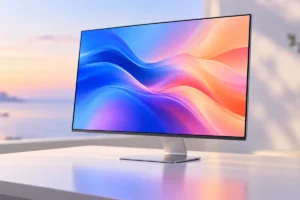
A good monitor should fit what you do, how far you sit from the screen, and what your computer can run. You do not need to master every specification: start with size and resolution, then compare panel type, refresh rate, and connections.
Start With Screen Size and Desk Space
For many desks, a 24-inch or 27-inch monitor is a sensible starting point. A 24-inch screen fits smaller spaces and keeps everything within easy view. A 27-inch screen gives you more room for documents, browser windows, games, and movies without feeling unusually large.
Consider how far you sit from the screen. If your desk is shallow, a very large display may force you to move your head to see its edges. If you sit farther back or often use two windows side by side, a larger screen can be more comfortable. Check the monitor’s width, stand depth, and height before deciding; screen size alone does not tell you how much desk space it needs.
An ultrawide monitor can replace some two-screen setups, but it costs more desk space and may not suit every game or video. For a work-focused setup, our small-budget home office guide covers other ways to make a desk more useful. Choose a size you can view comfortably, not simply the largest one that fits.
Match Resolution to Screen Size
Resolution is the number of pixels on the screen. More pixels can make text and images look sharper, but they also give your computer more work to do. Full HD (1920 × 1080) remains a practical choice for many 24-inch monitors. On a 27-inch screen, it may look less crisp when you sit close, especially around small text.
At 27 inches, 1440p (2560 × 1440) is a useful middle ground for work and gaming. It offers more room and sharper text than Full HD without the demands of 4K. A 4K monitor can look especially clear at 27 inches or larger, but you may need to increase text size in your operating system to read comfortably.
For games, check whether your computer can deliver the performance you want at your chosen resolution. Higher resolution can reduce frame rates unless you have enough graphics power. For everyday work and streaming, you may value sharp text and video more than maximum speed. Do not pay for extra pixels without considering screen size, viewing distance, and your computer.
Understand IPS, VA, and OLED Panels
Panel type affects how a monitor looks from different angles and how it handles dark scenes. IPS is a dependable general-purpose choice. It usually offers wide viewing angles and consistent colors, making it easy to recommend for documents, browsing, photo work, and mixed use. Contrast varies between models, so dark scenes may look somewhat gray in a dim room.
VA panels often provide stronger contrast than IPS panels. That can make movies and dark games more pleasing, particularly when the lights are low. Some VA monitors, however, show noticeable smearing behind moving objects. If you play fast games, look for reliable reviews of the specific model rather than assuming every VA screen behaves alike.
OLED delivers deep blacks and very fast pixel response, but it is usually a more expensive choice and carries a risk of permanent image retention from static elements. Its upkeep guidance and warranty terms are worth reading if you leave toolbars or spreadsheets on screen for long periods. Panel type is a starting point, not a guarantee: two monitors using the same technology can still look and perform differently.
Choose a Refresh Rate for Your Use
Refresh rate describes how many times a monitor can update its image each second. A 60 Hz display is adequate for documents, video calls, and most movies. A 100 Hz or 120 Hz display can make scrolling and pointer movement feel smoother, even if you do not play games. For gaming, 144 Hz or higher can help fast motion look clearer and feel more responsive.
A high refresh rate matters most when your computer can produce enough frames to use it. A 180 Hz monitor will not turn a game running at 45 frames per second into a 180-frame experience. Look for variable refresh rate support, such as Adaptive-Sync, to help reduce tearing when frame rates change. Check that your computer, connection, and monitor support the resolution and refresh rate you want together.
Advertised response-time numbers can be hard to compare because brands may measure them differently. Independent model-specific reviews are more useful for spotting blur or distracting overshoot. If you are planning a wider gaming setup, our guide to gaming accessories worth considering can help you decide what else deserves space on your desk.
Think About Movies, Color, and HDR
If movies are a priority, contrast and viewing conditions deserve as much attention as resolution. Strong contrast helps dark scenes look deep rather than washed out. IPS can be a good choice for watching with other people because the picture remains more consistent from the side. VA may suit solo viewing in a dim room, while OLED is appealing when deep blacks matter and its trade-offs fit your use.
Do not assume that an HDR label means a dramatic upgrade. Convincing HDR depends on brightness, contrast, and the ability to control bright and dark areas separately. A basic monitor may accept an HDR signal yet show only a modest difference. Read detailed reviews of the actual model if HDR is an important reason for your purchase.
For everyday viewing, sensible color settings matter more than a long list of color claims. An accurate preset can make skin tones and familiar scenes look more natural. If you connect a laptop, console, or streaming device by HDMI, confirm that the port supports the picture settings you need. Our guide to HDMI cable differences explains when cable specifications matter.
Check Connections and Comfort Features
Before comparing fine details, list everything you plan to connect. HDMI is common on laptops, desktops, and consoles; DisplayPort is common on desktop computers. Having enough ports lets you keep devices connected without swapping cables. Also check which resolution and refresh rate each port supports, since a monitor’s ports may not all have the same capabilities.
USB-C can make a laptop desk simpler by carrying video and, on some monitors, providing charging and USB connections through one cable. These features are not automatic. Confirm that your laptop supports video over its USB-C port and that the monitor provides enough charging power for it. Our USB-C cable and speed guide explains why matching the port and cable matters.
Comfort is just as practical as connectivity. A height-adjustable stand helps place the top of the screen near eye level; tilt and swivel make sharing or repositioning easier. If you prefer a monitor arm, check for VESA mount support. Built-in speakers can handle basic alerts or calls, but their quality varies. These everyday features may improve your experience more than a small difference in headline specifications.
A Simple Comparison Before You Decide
Narrow your options by choosing a size that fits your desk, then a resolution that makes sense at that size. After that, compare panel type and refresh rate against your main activity. This order keeps eye-catching specifications from distracting you from what you will notice every day.
- Mostly work: Consider a 24-inch Full HD or 27-inch 1440p IPS monitor. Prioritize readable text, an adjustable stand, and the ports your devices need.
- Mostly movies: Give contrast and viewing angles careful attention. Check model-specific reviews before treating an HDR label as a benefit.
- Mostly gaming: Match resolution to your computer’s graphics performance. Look for a useful refresh rate, variable refresh rate support, and good motion handling in reviews.
- A bit of everything: A 27-inch 1440p IPS monitor with a refresh rate above 60 Hz is a reasonable starting point, if it fits your desk and budget.
Finally, confirm the exact model’s ports, stand adjustments, and return policy before making a decision. Similar model names can hide important differences. No single monitor is best for everyone; the right choice is the one whose trade-offs suit your daily use.
Frequently Asked Questions
Is 24 or 27 inches better for a desk?
Choose 24 inches for a shallow or crowded desk. Choose 27 inches if you have room and want more space for windows or games.
Is 1080p enough for a 27-inch monitor?
It can be enough if you sit farther back, but text may look less sharp up close. At 27 inches, 1440p is often a better balance.
Do I need a high refresh rate if I do not game?
No, but 100 Hz or 120 Hz can make scrolling feel smoother than 60 Hz. For basic work and movies, 60 Hz is still usable.
Does every HDR monitor show better-looking movies?
No. An HDR label alone does not guarantee enough brightness or contrast to make a clear difference; check reviews of the specific model.
Final Thoughts
Start with the space on your desk and the tasks you do most. Choose a suitable size and resolution, then check panel behavior, refresh rate, ports, and stand adjustments. That approach is more useful than chasing the biggest number on the box.