A laptop may have only two ports, but your desk can need a monitor, keyboard, storage drive, and charger. A dongle, hub, or dock can help, though they solve different problems. The right choice depends on what you connect, how often you move your laptop, and what its USB-C port actually supports.
Dongle, Hub, or Dock: Which One Fits?
A single-purpose dongle adds one connection, such as HDMI, Ethernet, or an SD card reader. It is the simplest choice when your laptop is missing just one port. A small dongle also takes up little room in a travel bag.
A hub adds several ports through one laptop connection. Portable hubs often combine USB ports, HDMI, card readers, and a USB-C power input. They suit people who work in different places but sometimes need a fuller setup. Check the product description carefully: a USB-C port on a hub may be for charging only, not for data or video.
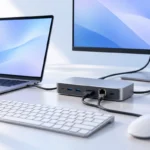
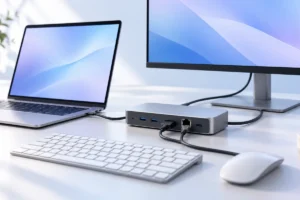
A dock is usually meant to stay on a desk. It may offer more ports, a separate power supply, and support for a more complex monitor setup. That convenience costs desk space and can require more careful compatibility checks. None of these devices can give your laptop a feature its own port does not support. If the terms on a product page are confusing, our guide to USB-C cables, chargers, and speeds explains the basics.
Start With the Ports You Use Every Week
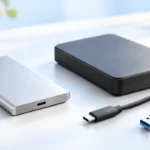
Before comparing port counts, write down what you connect on a normal day. A mouse receiver and keyboard may need two USB-A ports. A newer storage drive may need USB-C data. A wired network needs Ethernet. A monitor needs a suitable video output, while a camera memory card may make an SD reader worthwhile.
Pay for ports you will actually use, not the longest list on a box. Four USB-A ports will not help if your main problem is connecting a display. Likewise, a card reader adds little value if you never handle memory cards. If you have only one free laptop port, remember that the hub itself uses that port.
Look closely at where the ports sit, too. Wide plugs can block neighboring sockets on a compact hub. A short built-in cable may leave a hub hanging awkwardly from a raised laptop stand. For a permanent desk, a dock with accessible front ports can make temporary connections easier, while rear ports can keep monitor and power cables out of the way.
Get Charging Wattage Right
Many hubs offer USB-C power pass-through: you plug your charger into the hub, then connect the hub to the laptop with one cable. That is convenient, but the hub may reserve some power for itself. A hub advertised with a 100-watt power input does not necessarily deliver 100 watts to the laptop.
Check the wattage of your laptop’s original charger and the hub’s stated power output to the laptop. If the hub supplies less than the laptop needs under a heavy workload, charging may be slow, stop, or fail to keep up while you work. Also confirm that the laptop supports charging through the USB-C port you plan to use; a USB-C-shaped socket does not guarantee it.
A powered dock may include its own power supply, so check its stated laptop-charging output rather than assuming the included adapter is enough. If you mostly browse and write, your power needs may differ from those of someone running demanding software. Our guide to making a laptop battery last longer covers habits that help away from the desk, too.
Check Monitor Support Before Choosing a Dock
A video port on a hub is useful only if the laptop can send video through the port connected to it. Look up your laptop’s specifications for USB-C DisplayPort support, USB4, or Thunderbolt, as applicable. Then check the hub or dock for the resolution and refresh rate you want. An HDMI socket alone does not tell you whether it can run your monitor at its best settings.
Multiple monitors need extra care. Laptop limits, operating-system support, dock technology, and the display outputs all matter. Some docks use DisplayLink software to add screens; that can be useful, but it requires a driver and may not suit every task. Do not assume that two HDMI ports guarantee two independent external displays on your laptop.
If you use one ordinary office monitor, a compatible hub may be all you need. If you want two screens or a high-refresh-rate display, check the exact laptop and dock combination before choosing. The cable between the dock and monitor matters as well: our guide to what matters in an HDMI cable can help you avoid paying for features you do not need.
Think About Speed, Ethernet, and Shared Bandwidth
Not every USB port on a hub transfers data at the same speed. That may not matter for a keyboard or mouse, but it matters when you regularly move large files to an external drive. Check the stated speed of the particular port you will use, not just the largest speed number in the product name.
A hub also shares its connection to the laptop among attached devices. A display, fast storage, and network connection can compete for available bandwidth, depending on the hub’s design and the laptop port. If large file transfers are a daily task, consider connecting your fastest drive directly to the laptop or choosing a dock whose specifications clearly support your setup.
Ethernet is worth considering if your Wi-Fi is unreliable, you make frequent video calls, or you transfer files over a local network. A Gigabit Ethernet port is enough for many home connections, but it will not make a slow internet plan faster. Card readers also vary in speed. If you import large photo or video collections, check the reader’s stated capabilities rather than assuming every SD slot performs alike.
Choose for Your Desk and Your Laptop
A compact hub is handy when you pack up often. It can stay in your bag and cover the occasional monitor, memory card, or USB accessory. For a desk you use every day, a dock can reduce repeated plugging and unplugging. Its value is convenience, not simply having more sockets.
Check compatibility using your laptop’s exact model and operating system. Read whether a dock needs a driver, which monitors it supports, and how much power it delivers. If you use a work laptop, ask whether you are allowed to install required software. Some devices offer fewer features on certain laptops or operating systems, even when the connector fits.
Finally, picture the whole setup: cable length, power outlet, monitor position, and room for the dock. A simple layout can be better than a complicated dock with unused ports. If you are building a workspace from scratch, our small-budget home office guide can help you decide what else deserves space on the desk. Choose the device that fixes your daily friction, not every possible future need.
A Quick Way to Make the Choice
Use this comparison as a starting point, then confirm the specifications against your laptop. The connector shape is only the first check; charging, video, and data support can differ between laptops and between their ports.
- Choose a dongle if you need one missing port, such as Ethernet or HDMI, and want the smallest item to carry.
- Choose a portable hub if you regularly need several basic connections and move between desks. Check power pass-through and monitor limits if you expect one-cable use.
- Choose a dock if you leave a monitor and accessories connected at a fixed desk. Check its power output, display support, and any software requirements.
Before settling on one, list your essential ports and mark which devices you use at the same time. Compare that list with the stated port functions, not just the number of sockets. Then check your laptop’s specifications for charging and video over its USB-C connection. Those few minutes of checking are more useful than choosing the device with the most impressive-looking port count.
Frequently Asked Questions
Can a USB-C hub charge any laptop?
No. The laptop port must support USB-C charging, and the hub must deliver enough power for the laptop. Check both sets of specifications.
Will a hub with two HDMI ports run two monitors?
Not necessarily. The laptop, operating system, and hub must all support the display setup you want.
Do I need a powered dock for a keyboard and mouse?
Usually not. A basic hub is often enough for low-power accessories, provided it has the ports you need.
Is a dock faster than a portable hub?
Not automatically. Compare the supported speeds of the laptop port, the dock or hub, and the specific ports you plan to use.
Final Thoughts
For one missing connection, start with a dongle. For a few connections on the move, consider a hub. For a desk that stays set up, a dock may make the daily routine easier. Whatever you choose, check the ports, charging wattage, and monitor support against your laptop before you decide.