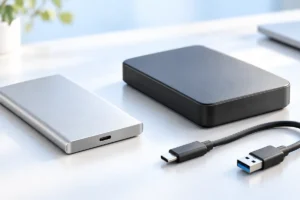
An external SSD and an external hard drive can both give you more storage, but they solve different problems. In 2026, the better choice depends on whether you value speed and portability or the most space for your money.
How Much Does Speed Matter?
An external SSD is usually much faster than an external hard drive. You will notice the difference when moving large video files, opening projects stored on the drive, or copying a folder full of photos. An SSD can also make a portable game library or editing workspace feel more responsive.
A hard drive is fast enough for many simple jobs. If you connect it once a week to back up documents and family photos, waiting longer for the copy to finish may not matter. The extra speed of an SSD is less useful when the drive spends most of its time on a shelf.
Do not judge speed by the drive alone. Your computer’s port, the cable, and the drive’s connection standard can all limit transfers. A fast SSD plugged into a slower port will still work, but it may not reach its advertised speed. Also, speeds on a product box usually describe ideal conditions; copying many small files can be slower than copying one large file.
Which Gives You More Storage for Your Money?
Hard drives generally cost less per terabyte, especially at larger capacities. If you have years of photos, videos, or computer backups to keep, a hard drive can provide more room without paying for speed you rarely use. This is the strongest reason to choose one in 2026.
SSDs usually cost more for the same amount of storage. The trade-off can be worthwhile if the drive goes everywhere with you or holds files you work on every day. Instead of buying the largest drive you can afford, estimate how much space you use now and leave room for growth.
Check capacity carefully when comparing drives. A computer may show less available space than the number printed on the box because manufacturers and operating systems count storage differently. Formatting also uses a small amount of space. If you are storing large videos or full-device backups, plan for that difference and avoid filling the drive completely. A little free space makes it easier to manage new files and future backups.
Which Drive Handles Travel Better?
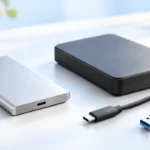
SSDs have no moving parts, so they are generally better suited to being carried in a bag. They are often smaller and lighter, and a minor bump is less likely to interrupt an active transfer. That makes an SSD the simpler choice if you regularly move files between home, work, and school.
Hard drives contain moving parts and need more care, particularly while they are running. Set one on a stable surface before copying files, and do not unplug it until the transfer is complete. A padded case can help during travel, but it cannot make a hard drive shockproof.
Neither type is indestructible. Water, extreme heat, a damaged connector, or a lost bag can leave you without your files. Keep drives out of hot cars, and see our guide to protecting gadgets from summer heat for broader care advice. If important files travel with you, keep another copy somewhere else. Durability lowers some risks; it does not replace a backup.
What Is Best for Backups?
For a large backup that stays at home, an external hard drive is often the practical choice. Its lower cost per terabyte makes it easier to keep full computer backups and older files. An SSD also works for backups, but its speed is most valuable when you need to restore or update large amounts of data quickly.
The type of drive matters less than having a reliable backup routine. Connect it regularly, confirm that backups finish, and occasionally check that you can open a saved file. If your backup drive stays connected all the time, a computer problem or ransomware could affect it too. Disconnecting it after a backup can reduce that risk.
For files you cannot replace, aim for more than one copy in more than one place. For example, keep your working files on your computer, a backup on an external drive, and another copy in a separate location or a cloud service. No SSD or hard drive lasts forever, so plan to replace a failing drive rather than trusting it with your only copy.
What Should You Carry for Work or Travel?
Choose an SSD if you need to open files directly from the portable drive, hand off large projects, or work in different places. Its compact size is useful when every item in your bag counts. For ideas on keeping the rest of your kit manageable, see our travel tech packing list.
A hard drive can still make sense on a trip if you need a lot of room for footage or photos and will mostly copy files to it at the end of the day. Carry it carefully, and remember that one travel drive should not hold the only copy of important work.
Think about privacy as well as space. If you carry personal documents or client files, look for a way to encrypt the drive using tools supported by your devices. Store the recovery key somewhere safe and separate. Also check whether you need to share the drive between Windows, macOS, or other devices; choosing a compatible format before adding files can save trouble later.
Check the Port Before You Choose a Drive
A USB-C plug does not tell you how fast a drive will be. USB-C describes the connector shape, while the supported USB standard affects transfer speed. Your computer, drive, and cable must all support the connection you expect. Our guide to USB-C cables, chargers, and speeds explains why similar-looking ports can behave differently.
Before choosing a fast SSD, check the specifications for the computer you will use most. Paying extra for a faster drive may bring little benefit if that computer has slower ports. If you use several computers, make sure you have the right cable or adapter for each one.
Also consider how the drive gets power. Many portable SSDs and compact hard drives run through a single USB cable. Larger desktop hard drives often need a separate power supply, which makes them less convenient to move but can be fine for a fixed backup spot. Finally, check that your computer and any other intended device can read the drive’s file format.
A Simple Way to Decide
Start with the job the drive will do most often. If two jobs matter equally, it may be more useful to have a smaller SSD for active files and a larger hard drive for backups than to force one drive to do everything.
- Choose an external SSD for frequent travel, daily file transfers, or projects you want to open from the drive.
- Choose an external hard drive for large, routine backups or files you rarely need to access.
- Choose both if you want a portable work drive and a separate, roomier backup at home.
For a desk setup, decide where the backup drive will live and how often you will connect it. Our guide to setting up a home office on a small budget can help you think through the wider workspace. Whichever drive you choose, leave room for future files and keep a second copy of anything you would hate to lose.
Frequently Asked Questions
Is an external SSD always better than a hard drive?
No. An SSD is better for speed and portability, while a hard drive usually offers more storage for the money.
Can I use an external SSD for backups?
Yes. An SSD works well for backups, but keep another copy of important files because any single drive can fail or be lost.
Will a fast SSD work with an older computer?
Usually, if you have a compatible port and cable. Its transfer speed may be limited by the older computer’s connection.
How long can I keep files on an unused external drive?
Do not treat either drive type as permanent storage. Check stored files periodically and keep a separate copy of anything important.
Final Thoughts
For most everyday buyers, the choice is straightforward: pick an external SSD for files you carry and use often, or a hard drive when you need lots of backup space at a lower cost per terabyte. We researched the practical differences, but the right drive still depends on your files, your computer’s ports, and your backup habits. Whatever you choose, never let one drive be the only home for important data.