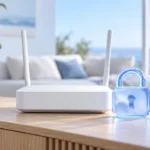
A few router settings can make your home network much harder to access without permission. You do not need to understand every menu: start with the settings that protect your passwords, keep the router updated, and limit who can connect.
Find Your Router Settings and Secure the Admin Login
Start on a phone or computer already connected to your home network. Many routers have an app; others use a settings page you open in a browser. The address and first-time login details may be printed on the router or listed in your internet provider’s instructions. If you cannot find them, look up the instructions for your exact model rather than trying random settings.
Once inside, change the router’s administrator password if it still uses a default or shared password. This login controls the router itself. It is different from the Wi-Fi password that people enter to join your network. Use a long, unique password and save it in a password manager or another secure place.
If the router lets you change the administrator username, do that too. Turn on two-factor authentication for the router account if it is offered. Do not leave the settings page open on a shared computer, and sign out when you finish. If your internet provider manages the router, some controls may be locked; its support pages can tell you which settings you can change.
Use a Strong Wi-Fi Password and Modern Security
Next, check your main Wi-Fi network. Set a long password that you do not use for email, shopping, or any other account. A few unrelated words plus extra characters are easier to type than a short, complicated string. Share the password only with people who need it, and avoid posting it where visitors can photograph it.
Look for a security option such as WPA3-Personal. If all your devices support it, use it. If an older device cannot connect, a WPA2/WPA3 mixed mode may help; otherwise, WPA2-AES is a reasonable fallback. Avoid WEP, WPA, and any setting that leaves the network open. Menu names vary, so check your router’s manual if the choices are unclear.
Changing the Wi-Fi password will disconnect your devices until you enter the new one. Pick a time when that interruption is convenient. A newer Wi-Fi standard does not replace good security settings: our guide to Wi-Fi 6 and Wi-Fi 7 explains what an upgrade may change, but your current router may already have the security options you need. Check its settings before replacing hardware.
Update the Router’s Firmware
Firmware is the software that runs your router. Updates can fix security problems as well as ordinary bugs, so check the update page while you are logged in. If your router offers automatic security updates, turn them on. Otherwise, set a reminder to check the manufacturer’s or internet provider’s instructions regularly.
Use the router’s own update tool or the official support site for your exact model. Do not install a file from an unfamiliar link or a message that claims your router needs an urgent fix. During an update, keep the router powered on and allow it time to restart. Your connection may drop briefly, so avoid beginning the process during an important call.
Check whether the router still receives security updates. If support has ended, stronger passwords alone cannot fix newly discovered software flaws. Also give the router space to release heat; a hot, cramped location can cause unreliable operation. Our advice on protecting gadgets from summer heat covers that practical care. Good placement does not replace updates, but it helps the router stay dependable while it runs them.
Put Visitors and Smart Devices on a Guest Network
A guest network gives visitors internet access without handing them the password to your main Wi-Fi. Enable it if your router supports it, give it a separate password, and check whether it can block guests from reaching devices on your main network. Some routers call this setting “isolation” or “local network access.” Turn isolation on for visitors unless they need to use something local, such as a shared printer.
You can also consider a separate network for smart plugs, cameras, and other connected household devices. That separation may limit what one device can reach if it has a security problem. The smart home starter guide is a useful reminder that each new device joins a network you need to manage.
Check your router’s options before moving devices. A guest network may prevent a phone on your main network from finding a smart speaker or camera. If that happens, look for a dedicated smart-device network or keep devices that must communicate on the same trusted network. A separate network helps only when its access rules actually provide separation.
Switch Off Features You Do Not Need
Some router features make connecting easier by opening extra ways into your network. Wi-Fi Protected Setup, often called WPS, is one example. If you connect devices by entering the Wi-Fi password and do not use WPS, turn it off. That removes a convenience feature you do not need.
Check remote administration next. It lets someone reach the router’s settings from outside your home. Most households can leave it disabled and manage the router while connected at home. Do not confuse it with a router app that uses an online account; review that app’s account security and remote-control options separately.
You may also see UPnP, which lets devices request network access automatically. Turn it off if you do not need it, but note that some games, video calls, or other services may stop working as expected. If you rely on one of them, learn what access it needs rather than switching features blindly. Check any existing port-forwarding rules and remove ones you no longer recognize or use. For a home office, a simple home office setup works best when its network access is kept as limited as practical.
Review Connected Devices and Keep a Recovery Plan
Open the router’s connected-devices list and look for phones, computers, TVs, and other gadgets you recognize. Device names can be vague, and one gadget may appear under an unfamiliar label. Before assuming an unknown entry is an intruder, turn a suspected device off and see whether the entry disappears. Your router’s app may show more detail than its browser page.
If you still find a device you cannot account for, change the Wi-Fi password and reconnect only devices you trust. Check the administrator password too. Removing a device from a list is not a lasting fix if it still knows the network password.
Keep a record of your router model, where to find its official instructions, and where you securely saved its administrator password. If you must reset the router, you may need to set up Wi-Fi and any custom settings again. On an internet-provider router, ask the provider before a factory reset if you are unsure what it will erase. Finally, revisit the connected-devices list after major changes or when something seems wrong. A quick review is more useful than trying to remember every setting months later.
A Practical Ten-Minute Router Check
Set aside ten minutes to review the controls, not to master every advanced menu. You may need longer if an update runs, a password change disconnects several devices, or your router’s instructions are hard to find. Work through the highest-value checks first:
- Minutes 1–2: Log in and check that the administrator password is unique. Enable two-factor authentication if available.
- Minutes 3–4: Check your Wi-Fi password and security mode. Plan a convenient time to change the password if it is weak.
- Minutes 5–6: Find the firmware update setting. Enable automatic updates or note when you will check again.
- Minutes 7–8: Review the guest network and its isolation setting. Give visitors a separate password if the option fits your household.
- Minutes 9–10: Check WPS, remote administration, UPnP, and old port-forwarding rules. Change only settings you understand, then save your work.
Write down anything you could not finish. Firmware installation and reconnecting devices are worth doing carefully, not rushing through a timer. If a setting breaks a service you use, return to the router’s instructions and change one option at a time so you can identify the cause.
Frequently Asked Questions
Is my router login password the same as my Wi-Fi password?
Usually not. The router login controls settings, while the Wi-Fi password lets devices join the network; give each a different, strong password.
Should I use WPA3 if an older device cannot connect?
Try a WPA2/WPA3 mixed mode if your router offers one, or use WPA2-AES as a fallback. Avoid older options such as WEP.
Will a guest network keep smart devices separate?
It may, but only if the router blocks access between networks. Check the isolation setting and confirm that devices you need to control still work.
What if my router no longer gets security updates?
Check the official support information for your model. If support has ended, consider replacing the router because password changes cannot repair new firmware flaws.
Final Thoughts
Router security does not require a complicated setup. Protect the administrator login, use strong Wi-Fi security, keep firmware current, separate visitors where practical, and turn off features you do not use. Start with the settings your router actually offers, then revisit them from time to time.