A home NAS can give your household one place to keep photos, documents, and backups without relying on a monthly cloud plan for everything. But owning the storage also means looking after it. Here is what beginners need to know before setting one up.
What Is a Home NAS?
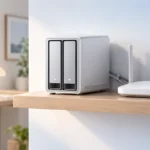
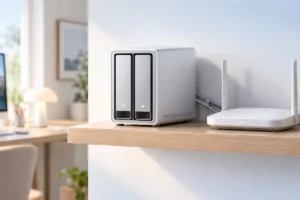
NAS stands for network-attached storage. In simple terms, it is a small computer with storage drives that connects to your home network. Your phone, laptop, and other devices can save files to it or open files already stored there. Most home NAS devices connect to your router with an Ethernet cable.
Think of it as a shared cupboard for digital files. One person might use it for laptop backups, while another keeps family photos there. Many NAS systems also offer apps that upload new phone photos automatically. That can help if you are regularly freeing up storage on an Android phone, though you should check that uploads have finished before deleting anything.
A NAS is sometimes called a private cloud, but the name has limits. The box usually sits in your home, uses your electricity and internet connection, and needs your attention when something goes wrong. It can make files available away from home, but remote access takes extra setup and security care. If you only need to share a few files, a NAS may be more than you need.
Choosing a Beginner Setup
The simplest dedicated setup is a ready-made NAS enclosure with one or two drive bays. You add compatible drives, connect the box to your router, and follow its setup guide. A one-bay model can provide shared storage, but a two-bay model gives you the option to mirror files across two drives. Check whether the enclosure includes drives; many do not.
You can also share a USB drive from a router or an always-on computer. This may be enough for basic file access, but features and reliability vary. A computer you already own gives you more control, while a dedicated NAS is generally easier for a beginner to manage. Check supported drive types and the maker’s software-update policy before choosing either route.
Plan around what you will store, not just the biggest capacity on a product page. Documents take little space; years of phone photos, videos, and computer backups need more. Leave room for growth and remember that mirroring two drives reduces usable space. If you plan to attach an external drive for backup, understand its connector and speed; our guide to USB-C cables and speeds explains why matching plug shapes do not always mean matching performance.
RAID in Plain Words
RAID is a way to arrange multiple drives in one storage system. For a beginner with a two-bay NAS, the most useful idea is mirroring, often called RAID 1. The NAS writes the same files to both drives. If one drive fails, the other can usually keep the files available while you replace the failed drive.
The trade-off is capacity. Two drives of the same size in a mirror give you roughly the usable space of one drive, not both added together. Other RAID arrangements can use space differently, but they bring more choices and usually need more drives. You do not need to learn every RAID level to start with a simple home setup.
Most important: RAID is not a backup. If you accidentally delete a folder, a synced deletion can affect both mirrored drives. Theft, fire, damage to the NAS, and some software problems can also put all its drives at risk. RAID mainly helps with a drive failure and may reduce downtime. Keep a separate copy of files you cannot replace, ideally including one copy away from your home.
Connecting It and Keeping It Secure
For a first setup, connect the NAS to your router by Ethernet and use it on your home network before trying remote access. Give each household member their own account where possible, and allow access only to the folders they need. Use a strong, unique administrator password, turn on multi-factor authentication if the NAS supports it, and install security updates.
Your network affects how responsive the NAS feels. Local file transfers can be slowed by weak Wi-Fi even when the NAS itself is working well. Before changing storage hardware, check where your router sits and whether your devices have a reliable connection. Our Wi-Fi 6 and Wi-Fi 7 guide can help you decide whether newer wireless equipment is worth considering.
Accessing files while away from home is convenient, but do not expose the NAS directly to the internet just because a setup screen makes it possible. Follow the manufacturer’s current security guidance and consider a properly configured VPN or supported remote-access option. If you do not need remote access, leave it off. Whichever option you choose, review account permissions and updates from time to time.
Can a NAS Replace a Cloud Plan?
A NAS can reduce your need for paid cloud storage, especially if several people need space for large files. But it is not free storage after the initial purchase. You pay for the enclosure, drives, electricity, and eventually replacement drives. You also spend time managing accounts, updates, and backups. The savings depend on how much storage you need and how long you use the device.
Cloud plans have strengths that are easy to overlook. They can be simpler to set up, make sharing away from home straightforward, and keep your files off-site. Their limits may include recurring fees, storage caps, and dependence on the provider and your internet connection. A NAS gives you more direct control, but your home internet upload speed can make remote transfers slow.
The choice does not have to be all or nothing. You could keep large everyday files on a NAS and use a smaller cloud plan for important documents or an off-site backup. Compare your actual storage use and the work you are willing to do. If you value simplicity above control, sticking with a cloud plan can be the better decision.
Backups and Routine Care
Decide how you will back up the NAS before moving your only copy of anything onto it. One practical approach is to copy important folders to an external drive on a schedule, then store that drive somewhere separate when it is not in use. An encrypted off-site backup can protect against problems that affect your entire home. Check that any backup plan covers the folders you actually care about.
Do not assume that a backup succeeded because you turned on a setting once. Review backup reports and occasionally restore a sample file to confirm that you can read it. Also check drive-health alerts, available space, and software updates. If a mirrored drive fails, follow the NAS maker’s replacement instructions carefully; rebuilding the mirror can take time, and you still need a separate backup.
Give the NAS a stable place with airflow, away from spills and excessive heat. If power cuts are common, a compatible uninterruptible power supply may help it shut down safely, though it does not replace backups. A little routine care is part of owning your storage, just as paying a subscription is part of using a cloud service.
Practical Comparison: Which Setup Fits You?
Start with the problem you want to solve, then choose the least complicated setup that solves it. A NAS is most useful when multiple devices need shared storage or when you want local control over a growing file collection. For a small set of documents, a cloud plan or an external drive may be easier.
- One person, modest storage needs: Start with an external drive and a separate backup, or keep using a cloud plan. A NAS may add more upkeep than value.
- Several devices or family members: Consider a two-bay NAS for shared files and backups. Use separate accounts and remember that mirrored drives still need a backup.
- Frequent access away from home: Compare the ease of a cloud service with the security setup and home upload speed a NAS requires. A mix of both may work best.
- A home workspace: A NAS can hold shared project files, but it cannot fix a poor desk or network setup. Start with the basics in our small-budget home office guide.
Before you commit, list your must-keep files, estimate how quickly they are growing, and write down where your second copy will live. That last step matters more than choosing an advanced RAID setting.
Frequently Asked Questions
Do I need a NAS if I already use cloud storage?
Not necessarily. A NAS makes more sense if you want local control or shared space for several devices and are willing to manage it.
Will a NAS work when my internet is down?
You can usually access it from devices on your home network if the router and NAS still have power. Access from outside your home will generally need an internet connection.
Does RAID 1 keep my files safe without a backup?
No. Mirroring helps if one drive fails, but it does not protect against accidental deletion, theft, or damage to the whole NAS.
Can my phone upload photos to a NAS automatically?
Many NAS systems offer phone apps with automatic upload, but features vary. Check that uploads are complete and keep another copy before removing photos from your phone.
Final Thoughts
A home NAS is a useful way to own and share your storage, but it is not a hands-off replacement for the cloud. Start simple, secure it, and make a separate backup. The best choice is the one that protects your files without giving you more upkeep than you want.