A more comfortable desk does not need a complete makeover. We researched simple upgrades that can make a noticeable difference on a modest budget, then ranked them by how much comfort they may add for the money. Start with the problem you feel most often, not the accessory that looks best in a photo.
1. Fix Your Screen Height Before Buying Anything
The best value is usually an adjustment you can make for free. Sit back in your chair, let your shoulders relax, and look straight ahead. If you have to bend your neck down to read your screen, raising it may help. If you tilt your chin up, the screen may be too high.
Try moving the display farther away or changing its angle before adding equipment. Text should be easy to read without leaning forward. You can also increase the text size in your computer settings rather than pulling the screen closer.
For a temporary height check, place a monitor on a stable, flat stack of books. Do not use a wobbly stack or block ventilation. Once you know the height that feels better, you can decide whether a riser is worth buying.
If you are building a workspace from scratch, our guide to setting up a home office on a small budget covers the bigger decisions. For an existing desk, screen position is a sensible first check because it costs nothing and affects every hour you spend looking at the display.
2. Add a Monitor Riser If the Height Change Helps
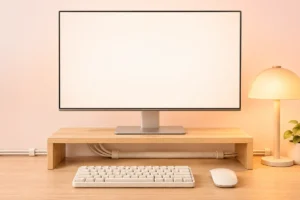
A monitor riser earns its place when it holds your screen at a comfortable height without taking away useful desk space. It can also create a spot underneath for a notebook or other small items. That makes it one of the stronger comfort upgrades for a crowded desk.
Measure before choosing one. Check the riser’s height, top dimensions, and stated weight capacity against your monitor and its stand. A wide screen on a narrow platform can feel unstable even when the listed weight capacity looks adequate. Make sure the legs sit firmly on your desk, not partly on a desk mat.
A riser is not always the answer. If your monitor stand already adjusts, use that first. If your desk is shallow, a deep riser could push the screen too close to your face. An adjustable monitor arm can free more surface space, but it also needs a suitable desk edge and more setup.
For laptop users, raising the screen creates another need: a separate keyboard and mouse. Typing on a raised laptop can leave your arms in an awkward position, so account for the whole setup before buying a stand.
3. Consider a Keyboard Tray Only If Your Desk Is Too High
A keyboard tray can have a large effect when your desk keeps your hands too high. With your shoulders relaxed, your elbows should rest near your sides and your wrists should not need to bend sharply upward to reach the keys. If you have to lift your shoulders while typing, lowering the keyboard may be more useful than replacing it.
Before shopping, check the space beneath the desk. Look for support bars, drawers, and enough room for your knees. Measure the keyboard and mouse together if you want both on the tray. Some compact trays leave too little mouse space, which simply moves the awkward reach somewhere else.
A tray is a poor choice if it shakes while you type or prevents you from sitting close to the desk. Try adjusting your chair and foot support first; your feet should feel supported rather than dangle after you raise the chair. Also consider your keyboard’s shape before blaming the desk. Our beginner’s guide to mechanical and membrane keyboards explains the basic differences without treating either type as a comfort cure.
Rank a tray highly only when keyboard height is a clear, recurring problem. Otherwise, simpler changes may offer better value.
4. Improve Task Lighting to Reduce Glare and Squinting
Lighting is easy to overlook because you can still work in a dim room. But if you squint at notes, lean toward the desk, or work beside a bright window with a dark screen, a small lighting change may make the space feel easier to use.
Start by moving what you already own. Place a lamp where it lights papers and your keyboard without shining directly into your eyes or reflecting off the screen. Shift the monitor’s angle if you can see a window or bare bulb mirrored in it. On a bright day, a curtain may do more for glare than another lamp.
If you need a new light, an adjustable desk lamp is often more practical than decorative lighting. A movable head lets you aim light at the work area, and a steady base matters on a small desk. Choose a brightness you can use comfortably alongside the room’s existing light.
Light bars and other screen-mounted options can save desk space, but check that they fit your monitor and do not create reflections. The aim is not to make the desk brighter at all costs. It is to see your work clearly without fighting glare.
5. Tidy Cables Where They Get in Your Way
Cable tidy-ups rarely change your posture directly, so they rank below screen height and keyboard position for comfort. They still matter when cords catch your mouse, crowd your feet, or make it difficult to move a laptop. A clear work area can make everyday tasks less irritating.
First, unplug unused cables and identify the ones you need to reach often. Route power and display cables along the back of the desk, leaving enough slack for a height-adjustable screen or a laptop you move regularly. Reusable ties are helpful because you can change the layout later. Avoid pulling cables tight around sharp corners.
Keep plugs and power strips accessible. Do not trap a power strip under a rug, overload it, or cover equipment that needs airflow. If a cable crosses a walking path, reroute it instead of treating a tie as the whole solution.
Cable labels can save time when several plugs look alike. If you are replacing a confusing charging cable, check its capabilities rather than assuming every connector with the same shape does the same job. Our USB-C cable and charger guide explains what to check. Buy organizers only after you know which cables are staying.
6. Make Room for Your Hands and Everyday Tools
A desk can feel cramped even when it has plenty of surface area. The usual cause is that the space directly in front of you is occupied by things you do not need while working. Clearing that area can be a bigger comfort win than adding another accessory.
Put the keyboard where you can type without reaching forward. Leave enough room beside it for the mouse to move naturally, and keep commonly used items within an easy reach. Store chargers, spare devices, and papers farther away if you only need them occasionally. This also gives your forearms space to rest without pressing against clutter.
If your mouse runs into the keyboard, try a more compact layout before buying a new mouse. If the desk edge feels uncomfortable against your arms, check your chair height and hand position first. A soft edge or mat may help, but it should not be used to hide a setup that forces your wrists into a strained angle.
Give changes a few ordinary work sessions before judging them. Comfort depends on your body, tasks, and desk dimensions. The useful upgrade is the one that removes a repeated annoyance, not the one that fills an empty corner.
7. Treat a Laptop as a Two-Part Setup
A laptop creates a basic compromise: when its keyboard is at a comfortable typing height, its screen is often low. Raise the screen, and the built-in keyboard may become awkward to use. That is why a laptop stand alone may not deliver the comfort improvement you expect.
If you spend long stretches at one desk, try raising the laptop screen and using a separate keyboard and mouse. You do not need elaborate accessories to check whether this helps. The stand or riser should hold the laptop securely, leave its vents clear, and keep the screen at a useful viewing distance.
If you move the laptop several times a day, a permanent arrangement may be more trouble than it is worth. Focus instead on a setup you can put back together quickly: a clear spot for the laptop, an accessible charger, and cables that do not snag when you leave.
Keeping a laptop plugged in at a desk also brings up battery questions. Our guide to making your laptop battery last longer covers useful settings and habits. For desk comfort, though, solve screen and hand position together before spending on either part.
A Practical Way to Rank Upgrades for Your Desk
There is no universal shopping order. Rank upgrades by the problem they solve for you, then make the lowest-cost change that could solve it. Use this quick comparison before spending:
- Neck bent toward the screen: Adjust the display first; consider a stable riser if the new height helps.
- Shoulders raised while typing: Check chair and keyboard height; consider a tray only if the desk remains too high.
- Squinting or screen reflections: Reposition your lamp, screen, or curtain before adding lighting.
- Cords catching your mouse or feet: Remove unused cables, then route and secure the rest.
- No room to work: Clear the area around your hands before buying storage.
Change one thing at a time when possible. That makes it easier to tell what improved and what did not. Measure your desk and equipment before buying anything that must fit under, on, or around them. If discomfort persists or becomes painful, desk accessories are not a substitute for advice from a qualified health professional.
Frequently Asked Questions
Which desk upgrade should I try first?
Start with a free adjustment to your screen, chair, or keyboard position. Then spend money only on the problem that still bothers you most often.
Is a monitor riser worth it for a laptop?
It can help bring the screen higher, but long typing sessions are usually more comfortable with a separate keyboard and mouse.
Will a keyboard tray fit every desk?
No. Check for drawers and support bars beneath your desk, and measure the space needed for both your keyboard and mouse.
Do I need special desk lighting?
Not necessarily. Repositioning a lamp or reducing window glare may solve the problem without another purchase.
Final Thoughts
The biggest comfort wins often come from correcting height, reach, and glare rather than adding more gadgets. Try free adjustments first, measure before buying, and choose the small upgrade that solves a problem you actually feel.